

role-based learning management system
Gain full control of your academy with custom user roles
Map users with their responsibilities. Create admins, instructors, reporters, seat managers, affiliates, and any other custom user type you want with our role-based learning management system.
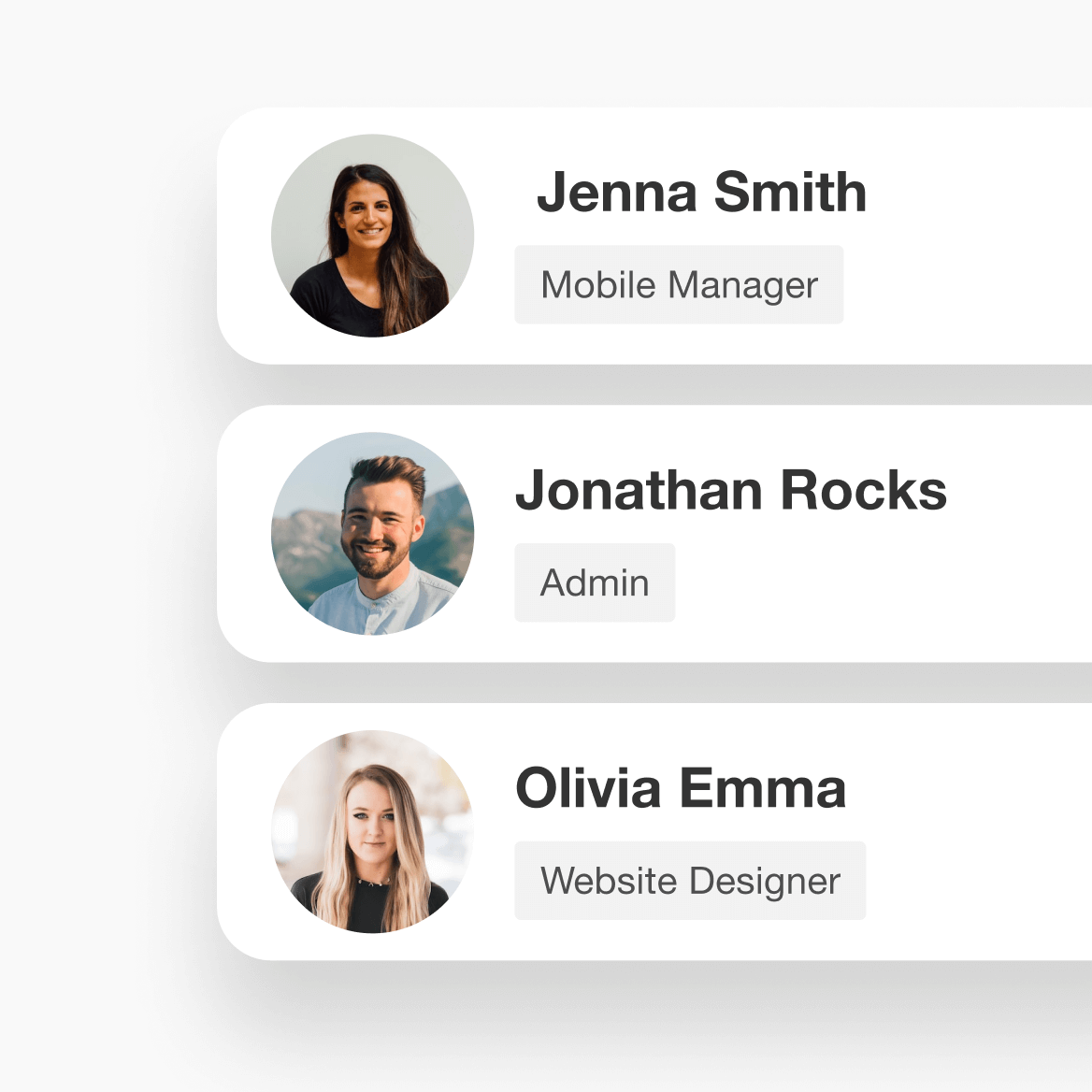
60+ granular permissions to control access
Create roles in seconds (duplicate and edit permissions)
Multiple custom user roles to choose from (admins to affiliates)
900k
Courses created
2m
Active learners/month
$1b+
Customer revenue
TL;DR
LearnWorlds’ Custom User Roles allow you to give your teammates and external collaborators the exact access they need. Create admins, instructors, reporters, seat managers, affiliates, and more, then fine-tune permissions across 60+ permission controls to protect sensitive areas, reduce mistakes, and scale operations securely.
Built for collaboration to help you compare and simulate roles before assigning
Keep internal training secure and reduce bottlenecks for multiple teams

Cleaner governance for compliance-heavy organizations
Best for:
Teams that need an LMS with role-based access control for members and staff—especially where compliance, privacy, or multi-team operations matter.
An LMS with role-based access control for members and staff
Never worry about disclosing security-sensitive data or restricted areas of your academy to people who shouldn’t have access. You need an academy managed by a whole team of designers, developers, instructors, and marketers, given access only to the data and sections they need.

Use our role-based LMS to customize permission levels with ease
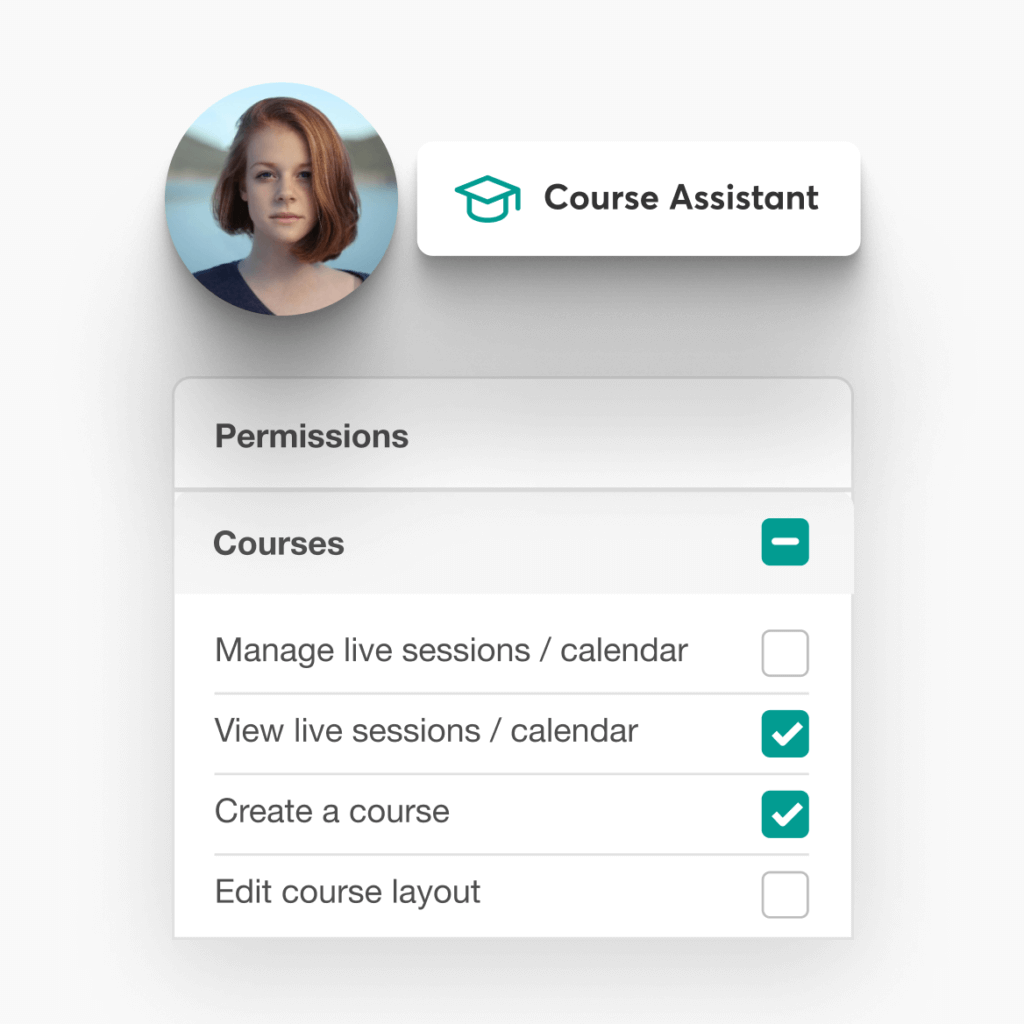
Make it quicker and easier
Make it easier for your team to work on their tasks by eliminating unnecessary options that act as distractions. Help your team members focus on what matters most.
Create custom roles for your needs
Create new custom user roles in seconds. Duplicate an existing role and customize it by adding or removing its permissions.
Get all the necessary permissions levels
Control access rights in your school on more than 60 different permissions.
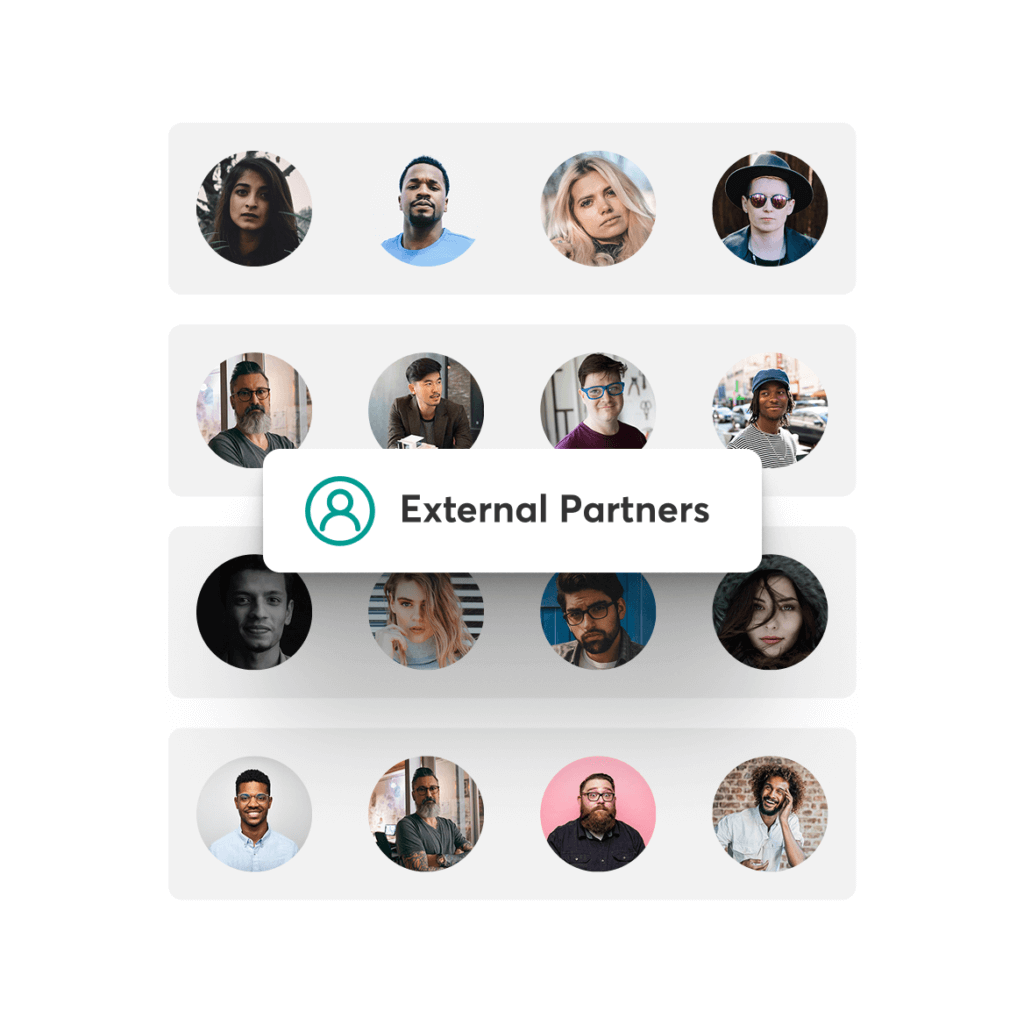
Collaborate with external partners
Enable partners and agencies outside of your organization to securely monitor the progress of your training programs. Assign third-party collaborators user roles so they can access only specific sections of your digital academy, such as reports or marketing tools.
B2B training clients
Allow clients to view learner progress and reports for their organization with tailored access permissions.
Instructors
Give subject matter experts access to create, manage, and deliver training for specific courses.
Team members and external agencies
Give external partners customized access to the pages, design, or marketing areas they support.
License reporters
Let license buyers view assigned learners, track progress, and export reports.
Compare custom user roles in an LMS: LearnWorlds vs basic LMS
Custom user roles power your academy’s governance by letting you assign the right access to the right people so your team members can do their job without exposing sensitive data or creating admin bottlenecks. Check how LearnWorlds compares to a basic LMS when it comes to role-based access control and permission management.
| Feature | Basic LMS | LearnWorlds |
|---|---|---|
| Role variety | 2–4 fixed roles (often Admin, Instructor, Learner, maybe Manager) | Many predefined roles, create unlimited custom roles (eg Marketer, Finance, Support, Reporter, Seat Manager, etc.) |
| Permission granularity | Coarse access (all-or-nothing areas; limited toggles) | 60+ permission controls across key areas (courses, users, marketing, reports, settings, etc.) |
| Custom role builder | Rare or very limited | Create roles from scratch or duplicate an existing role and edit permissions |
| Governance validation | No “preview” tooling; trial-and-error | Compare roles, simulate access before assignment (reduce over-permissioning) |
| External partner access | Often forced to share admin logins or over-grant access | Give agencies/partners restricted access (eg reports-only or marketing-only) |
| B2B / departmental oversight | Limited: “manager” can see too much or too little | Management/reporting roles (eg Segment Reporter/Manager, Seat/User Group Manager) for scoped oversight |
| Risk control | Higher risk of accidental changes and data exposure | Least-privilege governance: assign only what each role needs, nothing more |
| Operational scalability | Admin bottlenecks as teams grow | Delegate work across functions (instruction, marketing, support, finance) without making everyone an admin |
Beyond LMS user roles: A world full of market-leading features
Experience the power of LearnWorlds’ full suite of features. The most advanced on the market to build, market, and analyze your school, while keeping your students on point with live, flexible, and interactive courses.
Flexible Courses
Design impactful learning journeys that motivate and inspire.
Interactive Video
Use video-based learning to boost engagement and retention.
Pop-up Builder
Use popups strategically to guide users and highlight key actions.
Affiliate Programs
Grow through referrals—set up and manage your affiliate network.
AI Assistant
Bring your knowledge to life: AI supports you with tailored insights and content suggestions.
Mobile App Builder
Create a branded mobile experience that fits your learners’ lifestyles.
Bundles & Subscriptions
Increase revenue with flexible bundling and recurring payment models.
Survey Builder
Collect feedback that helps you refine your courses and strategy.
Website Builder
Launch a polished elearning site effortlessly—no technical skills needed.
Checkout & Payment
Offer smooth, secure transactions with full control over pricing.
Assessment Builder
Create reliable, user-friendly quizzes and self-assessments with ease.
Analytics & Reports
Monitor performance across your school with built-in LMS reporting and analytics.
Marketing Tools
Promote your academy with powerful tools built for conversions.
Live Sessions
Connect in real time to strengthen learner engagement and community.
Custom User Roles
Assign permissions confidently with tailored access controls.
Integrations
Extend your school’s reach with seamless connections to your favorite tools.
SCORM
Upload and manage SCORM/HTML5 content for interactive course delivery.
White-label Website
Deliver a completely branded experience—your school, your way.
LTI
Bring external learning tools into one consistent training experience.
Course hub
License quality courses from other academies.

Support articles
Go to Users → User Roles and create a new role from scratch or duplicate an existing one. Add a role name and description, choose a “starting role,” then switch permissions on/off to match the exact responsibilities you want (eg reports-only, marketing-only, course creator, support agent). You can also compare and simulate roles before assigning them to real users.
Support article: How to create custom user roles
Once your roles are ready, assign them to users from your user management area. Role assignment ensures each person can only access the sections and data they need—reducing risk and preventing accidental changes in sensitive areas.
Support article: How to assign user roles
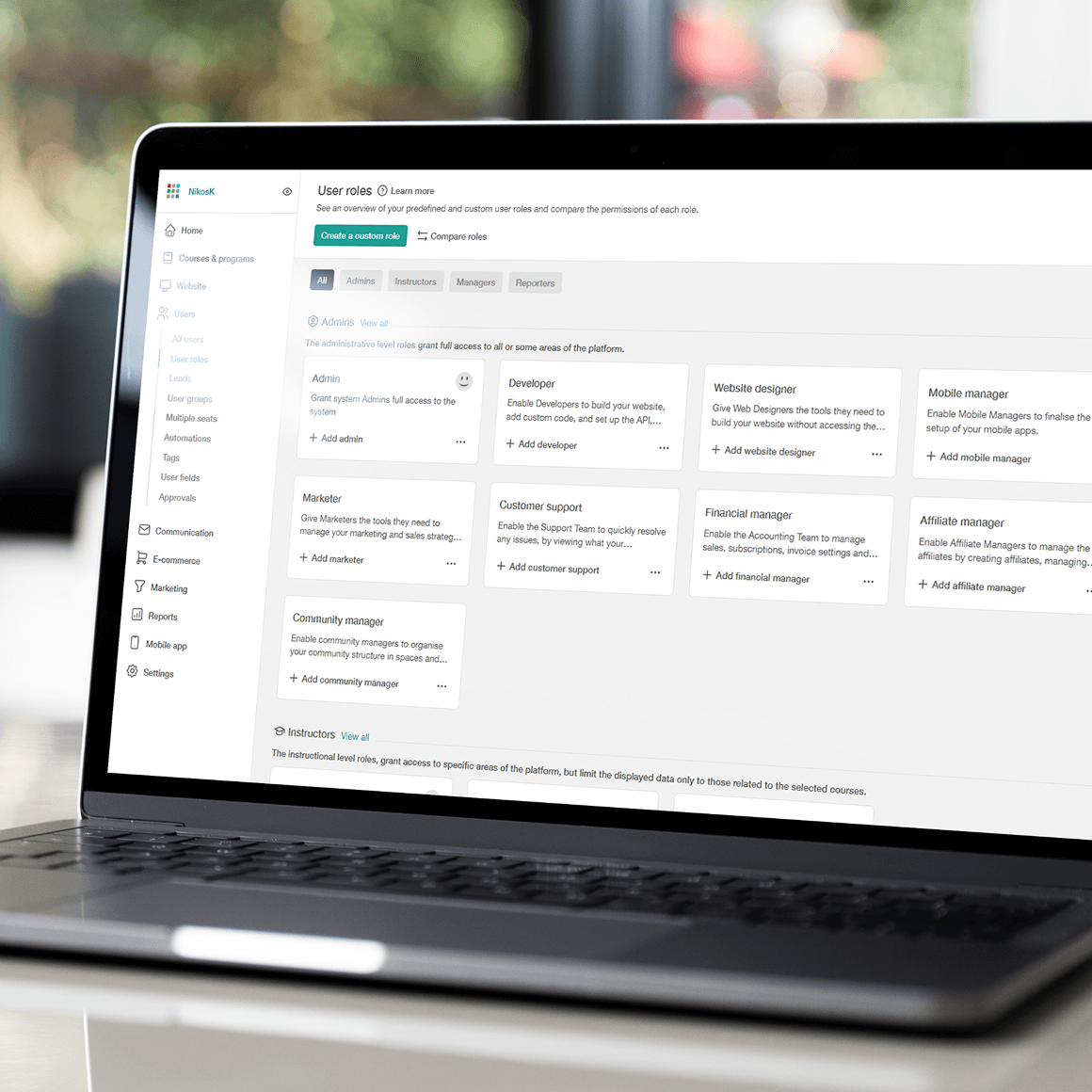
LearnWorlds includes predefined roles across key role levels (Administrative, Instructional, Reporting, Management) so you can quickly map common responsibilities like Developer, Website Designer, Marketer, Financial Manager, Support, and more—then customize them if needed. Predefined roles can’t be deleted, but you can edit or duplicate them to create a version that fits your org.
Support article: How to use the predefined user roles
Permissions are the on/off controls that define what a role can do across the platform—covering areas like courses, website builder, user management, marketing tools, mobile app, reports/analytics, communications (community/emails), and school settings. Use least-privilege: start minimal, then expand only when the role truly needs it.
Support article: How to manage user roles and permissions
Use ‘Compare’ to spot differences between two roles and verify exactly what’s being granted. Then use Simulate to preview what the role can access before you assign it—so you can catch over-permissioning early (especially helpful for external collaborators and reporting stakeholders).
Support article: How to create custom user roles (Compare & simulate)
LearnWorlds groups roles into levels to match how teams actually operate: Admin/ops roles (platform management), instructional roles (course delivery/content tasks), reporting roles (view-only insights), and management roles (group/seat/community oversight). This structure makes it easier to delegate safely at scale.
Support article: General overview: User roles
Create a dedicated role (eg reports-only for clients, marketing-only for agencies) and assign it to external collaborators. This lets them do their job—monitor performance or manage promotions—without exposing restricted settings or unrelated data.
Support article: How to create custom user roles
Use management-style roles (like User Group Manager / seat-focused roles) so department owners can add users, manage enrollments, and monitor progress inside their scope—without gaining system-wide administrative permissions.
Support article: User group manager support guide | How to create & manage user groups
You can manage users (and assign roles where available by plan) from the User Management area. This is the operational hub for adding users, editing access, and keeping your academy’s governance tidy as you scale.
Support article: User management page
Custom user roles are available on higher plans (eg Learning Center and above). For the most accurate plan availability and inclusions, check the official pricing page.
Support article: How to assign user roles (availability by plan)
Glossary of terms
Role-based learning management system (role-based LMS): An LMS that controls what users can see and do based on their role (eg admin, instructor, reporter), rather than giving everyone the same access.
Role-based access control (RBAC): A security and governance method where permissions are assigned to roles, and users inherit permissions by being assigned to a role.
User role: A predefined or custom “access profile” that determines what a person can view, edit, manage, or report on inside your LearnWorlds academy.
Custom user role: A role you create by selecting a specific set of permissions (often by duplicating an existing role and editing it) to match real responsibilities.
Predefined user role: A ready-made LearnWorlds role (eg Marketer, Developer, Financial Manager) that covers common job functions and can be used as-is or duplicated.
Permissions: Individual allow/deny controls that define what actions a role can take (eg view reports, edit courses, manage users). LearnWorlds supports 60+ permission controls.
Least privilege: A best-practice principle: give each role the minimum permissions needed to do the job—then add only what’s necessary over time.
Administrative role level: Roles focused on platform configuration and operations (eg Admin, Developer, Website Designer), typically with access to settings and technical areas.
Instructional role level: Roles that create and manage learning content (eg Course Creator, Instructor, Assistant Instructor), typically focused on course-related permissions.
Reporting role level: Roles that primarily view progress, analytics, and reports (eg Segment Reporter), without content-editing or admin access.
Management role level: Roles that manage groups of learners or business structures (eg Seat Manager, User Group Manager), often focused on oversight and coordination.
Admin: The highest-access system role with full control over the academy; use sparingly.
Instructor: A role that manages assigned courses and learners (depending on configuration), usually without full academy-wide administrative access.
Course creator: A role with expanded course-building permissions (often able to create/publish courses), typically broader than Instructor.
Assistant instructor: A role supporting instruction, commonly used for tasks like reviewing assignments and grading, without full course/academy control.
Marketer: A role focused on growth tools like promotions, coupons, funnels/lead capture, affiliates, and marketing analytics.
Financial manager: A role focused on sales, subscriptions, invoices, and financial settings/analytics, typically separated from content creation and site design.
Customer support role: A role designed to troubleshoot learner issues (eg user management, activity logs, “login as user”).
Affiliate manager: A role focused on managing the affiliate program—creating affiliates, setting rules, and approving payouts.
Developer: A role commonly used for integrations, API/webhooks, and technical setup, without access to sensitive business settings or content areas (as configured).
Mobile manager: A role focused on mobile app-related configuration and operations (where applicable), separate from full admin access.
Community manager: A role focused on moderating and organizing your community area—spaces, posts, and member interactions.
Community space manager: A scoped community role with moderation/management privileges limited to specific community spaces.
Segment: A structured subset of users used for organization, reporting, and management (eg department, cohort, client group).
Segment manager: A role that oversees an assigned segment, often with progress review and management actions depending on permissions.
Segment reporter: A reporting-only role for an assigned segment, designed for stakeholders who need visibility without editing rights.
User group: A collection of users grouped for management, access, enrollment, or reporting purposes—useful for departments, cohorts, or client accounts.
User group manager: A role responsible for managing users within groups (and related operations), typically without full academy access.
Seat: A licensed “spot” allocated for a learner (common in B2B training). Seat controls help manage who can access training under a plan or client account.
Seat manager: A role responsible for allocating and managing seats (and often group assignments), commonly used in B2B or multi-department setups.
External collaborator/partner: A third party (agency, contractor, client stakeholder) who receives limited, role-based access to specific areas like reports or marketing tools.
Third-party reporting access: A controlled setup where external stakeholders can view progress/analytics without accessing content editing, users outside the scope, or sensitive settings.
Simulate role: A preview mode/process to validate what a role can access before assigning it to real users—useful for avoiding accidental over-permissioning.
FAQs
Role-based learning is a training approach where learning access, content, and responsibilities are aligned to someone’s role (eg admin, instructor, manager, reporter). Instead of giving everyone the same view of your academy, you tailor what each person can do and see—so learners get relevant training, and stakeholders get the right level of oversight.
If you’re exploring platforms to support role-based learning, see our roundup of online learning tools that teams commonly combine (LMS, content tools, assessment, collaboration, analytics) to deliver structured training at scale.
An LMS with role-based access control for members and staff helps you scale training without sacrificing security or governance. You can delegate work across L&D, instructors, marketing, finance, and support without turning everyone into an admin, reducing mistakes, limiting access to sensitive settings/data, and speeding up day-to-day operations.
This is essential in enterprise environments where multiple departments, regions, and external collaborators need clearly separated responsibilities. LearnWorlds’ enterprise LMS is built for exactly these multi-team training use cases across employees, customers, and partners.
In a role-based LMS, start with the principle of least privilege: create roles based on real responsibilities (reporting, course delivery, marketing, finance, support), grant only the permissions needed, and expand access only when a role truly requires it. Keep roles consistent by using predefined roles as templates, then duplicating and tailoring them for edge cases.
Make sure you validate your setup before rollout by comparing roles and (where available) simulating access to confirm you’re not over-permissioning (especially when working with contractors and external partners). For more information, check out what a learning management system (LMS) is and how it’s used for planning, delivering, and tracking training.
LearnWorlds includes predefined LMS user roles organized across four role levels: Administrative, Instructional, Reporting, and Management. This structure makes it easier to match access to real job functions and delegate tasks safely without exposing restricted areas or data.
You can use predefined roles as-is or customize their permissions.
| Predefined user role | Key responsibilities and permissions |
| Admin | Full access to the system |
| Developer | Build a website, add custom code, set up API/integrations/webhooks without accessing course contents, price, and general settings |
| Website designer | Build a website without accessing the course contents, price, and general settings |
| Mobile manager | Finalize the setup of mobile apps |
| Marketer | Manage marketing and sales tools (eg coupons, promotions, bundles, affiliates, leads, sales, analytics) |
| Financial manager | Manage sales, subscriptions, invoice/financial settings; view users and sales analytics |
| Customer support | “Login as user,” manage users, and access the activity log to resolve issues fast |
| Affiliate manager | Create/manage affiliates, manage affiliate settings, and approve affiliate payments |
| Community manager | Organize online community structure (spaces/collections) and moderate content |
| Course creator | Create, manage, and publish courses (upgraded instructor permissions |
| Instructor | Manage assigned courses without creating new courses |
| Assistant instructor | Review assignments and grade assigned courses |
| Segment manager | Review progress and manage gradebook/certifications for users in an assigned segment |
| Segment reporter | Review progress for users in an assigned segment |
| Seat manager | Manage seats and/or user groups |
| User group manager | Manage groups and/or seats and assign users to them |
| Community space manager | Moderate community spaces |
LearnWorlds lets you create roles from scratch or duplicate an existing one for your training programs, then assign a permission set that matches responsibilities. You can also compare and simulate roles to verify access before giving it to teammates or external collaborators.
Here are the steps:
- Go to Users → User roles
- Click Create a custom role (or duplicate an existing role)
- Add a role name and description
- Choose a role to start from (predefined or custom)
- Select the permissions you want that role to have
- Compare/simulate the role access
- Assign the role to users
Learn more: Introducing custom user roles: The smarter way to collaborate for your online school
Yes. LearnWorlds supports reporting-friendly roles (like reporters/segment reporters) so stakeholders can access performance analytics and reporting without gaining admin or content-editing permissions. That’s a core advantage of a role-based learning management system: visibility without risk.
Our platform includes dedicated analytics and reporting capabilities (filters, exports, progress insights, and more) to track engagement and outcomes.
Explore more LearnWorlds features.
In a role-based LMS, the safest approach is to create a dedicated role for each partner type (eg reports-only for clients, marketing tools-only for agencies) and grant the minimum permissions required. This prevents accidental edits and keeps sensitive areas (pricing, settings, user data outside scope) protected—while still enabling collaboration.
LearnWorlds supports this by letting you create custom permission sets and assign them to external collaborators, so partners can contribute without becoming full admins.
Custom user roles are available on the Learning Center plan and in High Volume and corporate (custom price).
LearnWorlds offers the following plans:
- Starter – $29/month
- Pro Trainer – $99/month
- Learning Center – $299/month
For more information, check LearnWorlds’ pricing.
Master your school’s governance with a flexible role-based learning management system
LearnWorlds helps you run a secure, scalable academy by mapping every collaborator to the access they need. Create custom roles in minutes, fine-tune permissions across 60+ controls, and assign tasks without exposing sensitive data or giving everyone admin access.
Ready to make collaboration easy and set your roles up the right way?
How can different industries use LearnWorlds’ custom user roles?
Every team has different responsibilities—and different training requirements. With LearnWorlds, you can assign training by custom user roles (and groups) and give each audience the right experience, access, and reporting.



Corporate
Visualize employee training and onboarding, leadership development, and cross-department training metrics.


Education
Measure student engagement, course completion, and participation in live sessions.

Creators
Use learner analytics to refine content, grow engagement, and engage students in course completion across self-paced learning or community-led programs.



Non profit (NGO)
Track volunteer training, project-specific learning goals, and certification across teams.
Published:
Last Update: