Table of Contents
Key takeaways
- Build screens with AI: Describe what you need, and AI creates a mobile-first screen with copy, visuals, and layout based on your academy
- Update sections in one go: Add new sections or change content, design, and visibility with a prompt instead of editing individual elements
- Stay in control: Review and refine AI-generated results, edit them manually when needed, and decide when they’re ready to go live
Creating and updating your mobile app just got easier.
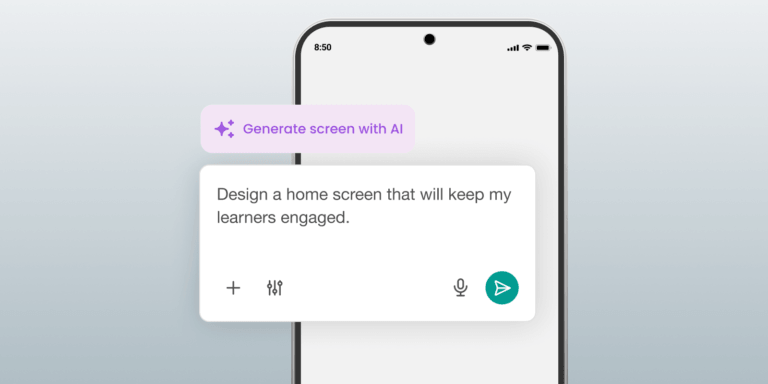
Designing an app screen used to mean choosing a structure, adding widgets, and adjusting each element individually. With the Mobile App AI Builder, you can describe what you need and let AI create a complete first draft, including copy and visuals based on your academy.
Every screen is built for mobile and adapts across different screen sizes. From there, you can change the layout, add sections, refine the content, or control who sees it with another prompt. Instead of clicking through individual elements, tell AI what the screen or section should become.
What is the LearnWorlds Mobile App add-on?
The Mobile App Builder gives your academy its own branded app for iOS, Android, or both. Learners can access your published courses from their phones without you duplicating your course content, while you control the app’s branding, navigation, and pages.
A mobile app can help you:
- Give field, frontline, and on-the-go learners easier access to training away from a desk
- Keep learners connected between sessions with push notifications and clear next steps
- Extend your academy’s brand to the app icon, store listing, and learning experience
- Show different pages, offers, or recommendations to specific learner groups
You prepare your developer accounts, branding, app structure, and store assets. LearnWorlds provides the mobile infrastructure, reviews your setup, and handles the technical build and app-store submission. Apple and Google complete the final store review.
Once the foundation is in place, the Mobile App AI Builder makes shaping the learner experience much easier. Instead of assembling every page widget by widget, you can create and refine mobile-first screens with a prompt.
💡See what to prepare and how the mobile app process works.
Start with an idea instead of a blank screen
A screen is simply a page learners see inside your mobile app, such as the home page, a course-discovery page, or an offer page.
Add a new screen and choose Generate with AI. Describe what the page should help learners do, or start with a template.
AI creates the first draft within the selected structure. Instead of writing every line and filling each part yourself, you begin with a complete version that you can review and adjust.
For example, you could ask for a screen designed for trial users. AI can create the initial content, then add a welcome heading and a section that helps learners continue learning.
See how it works:
Generate content that fits your academy
Generic content creates more editing work. The Mobile App AI Builder uses your academy context to create copy and visuals that reflect your subject and audience.
A coaching academy can get coaching-related content and imagery. A professional training academy can receive a more practical direction suited to its courses and learners.
You remain in control of the result. Rewrite the copy, change its tone, replace an image, or translate the text for another audience without rebuilding the screen.
Add new sections with a prompt
You can also use AI to add a section to an existing screen.
Describe the purpose of the section and what it should include. AI creates the content within an appropriate structure, ready for you to review.
You might add a course recommendation, a reminder for a learner group, or a time-sensitive upgrade offer. The new section can include copy and a visual based on your prompt and academy context.
Update a whole section at once
Some changes affect more than one element. You may want to adjust every card, apply another academy color, or control which learners can see the section.
Give AI one instruction and apply the update across the section.
For example, you could ask it to:
- Round the corners across the section
- Switch the design to your academy’s secondary color
- Show the section only to users with a specific tag
One prompt, guided by your academy context, replaces element-by-element editing.
Where this saves the most work
Customer conversations show how differently training businesses use their mobile apps. The value of this release is not limited to building the first version. It helps operators keep the app relevant as their programs, audiences, and priorities change.
Bring training closer to field teams
For field and frontline teams, mobile access can determine whether training fits into the working day at all. Learners may be on job sites, visiting customers, or moving between locations rather than working at a desk.
Create an app page that brings required courses, progress, or the next learning activity forward. When training priorities change, update the relevant section with a prompt instead of rebuilding the page.
This helps keep the mobile experience clear for people who need to find the right training quickly.
Keep cohort learners connected between sessions
Cohort-based programs often include gaps between live sessions. During those gaps, operators need a practical way to point learners toward the next activity, a useful resource, or a new piece of content.
Create a section for the next live session or a prompt to continue learning. Update it as the cohort moves through the program, then use a push notification to bring learners back to the relevant app experience.
The app stays useful between scheduled sessions without requiring a new page to be built by hand each time.
Show different audiences what matters to them
Many academies train more than one audience. Customers, partners, employees, and individual learners may all use the same academy while needing different content and calls to action.
Create app pages or sections for each audience, then use existing tags and visibility rules to control who sees them.
For example, a trial user could see a section explaining the benefits of upgrading, while a paid member sees a prompt to continue their course. When the message or offer changes, update the whole section with one instruction.
Audience rules still need to be configured correctly with Tags. AI reduces the content and design work involved in maintaining the different experiences.
Adapt app content for another market
Training businesses operating across countries often need to update more than a single sentence. Offers, calls to action, and supporting copy may all need to change for a new language or market.
Select the text you want to change and ask AI to translate it inside the builder. You can review the result, adjust the tone, and keep the existing section structure.
This gives you a quicker way to adapt app content without creating every localized version from the beginning.
You decide what goes live
Every AI-generated result remains editable. Review the draft, refine individual content, request another version, or continue editing by hand. Keep the screen as a draft until it is ready, then decide when to make it public.
AI supports the design and editing process. It does not launch or submit your mobile app. The standard app setup and store-submission process still applies.
Already have a mobile app? Open the Mobile App Builder to create your next screen or update an existing one with AI.
Considering the Mobile App add-on? See what you need, how the process works, and what to expect before launch.

Julia Prus
Julia is a Product Marketing Manager at LearnWorlds, where she turns product releases into clear value and makes sure what ships actually gets used.She has 8+ years of experience in product and growth marketing across B2B & B2C SaaS and digital products, working across startups and scale-ups to bridge product and marketing.
 Back to blog
 Scroll to top
Related Articles