
Payment Methods
Accept wallet payments with the Apple Pay LMS integration
Let eligible learners pay with the card saved in their wallet using the Apple Pay LMS integration.
TL;DR
The Apple Pay integration removes card entry for learners on Mac in Safari who already use Apple Pay. They pay with their wallet, and you keep Stripe as your gateway.
Skip card entry. Eligible learners on Mac in Safari pay with their saved wallet
Drop the layout work. LearnWorlds sizes and places the Apple Pay button for you
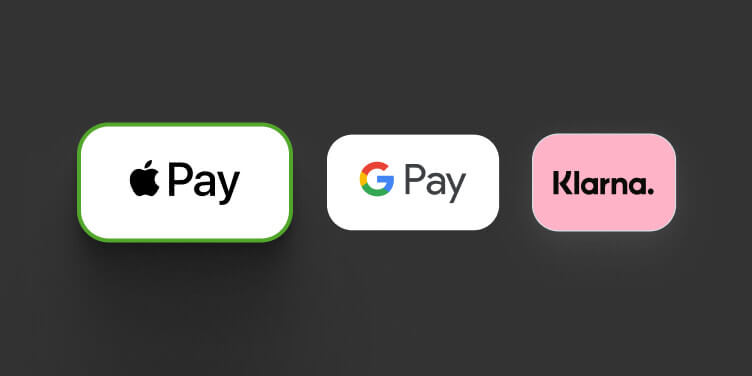
Put the wallet first. Apple Pay appears first and preselected for eligible learners
Best for: course creators who sell one-time purchases to learners buying on Mac in Safari.
Available on all paid plans. One-time purchases only, not subscriptions or installments.
What you can do with Apple Pay and LearnWorlds
Accept wallet payments
Let logged-in learners on Mac in Safari pay with the wallet they’ve already set up.
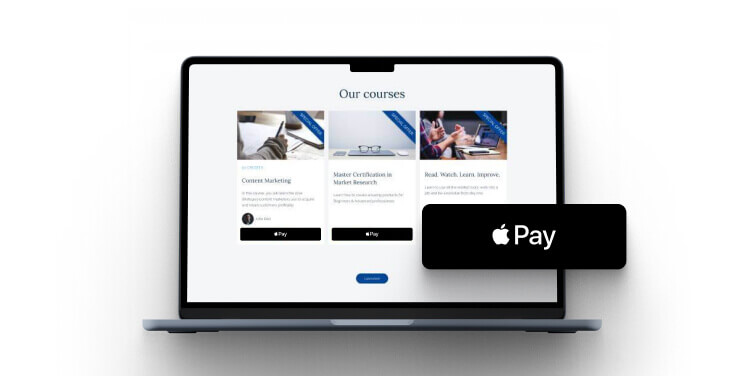
Use it in sales funnels
Offer Apple Pay in the one-click sales funnel as well as on the payments page.
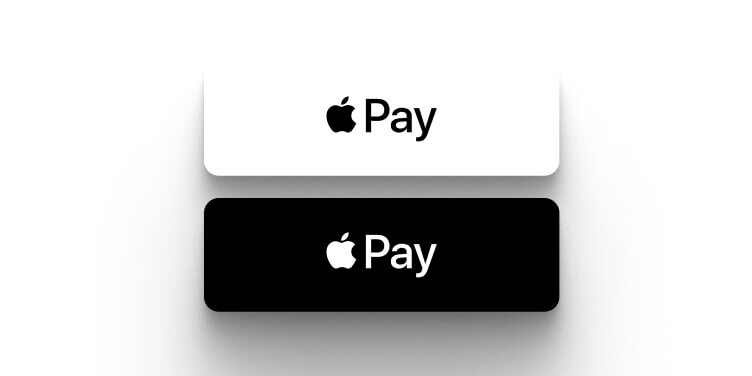
Set the button theme
Pick the light Buy button theme when your Payment Zone uses a dark background, as Apple’s guidelines require.
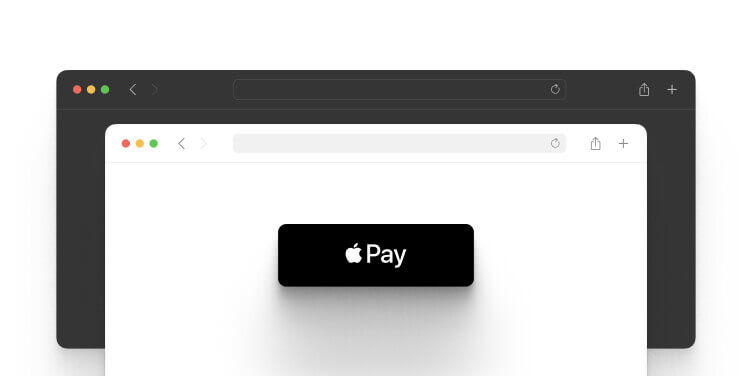
Preview it as an admin
Check the Apple Pay option yourself on Mac in Safari after setting up your wallet and logging in.
How LearnWorlds and Apple Pay integrate
See where Apple Pay shows up in your school and what it needs. Automatic rows need no extra setting, and Conditional rows need a change in Site Builder.
| LearnWorlds | Apple Pay | Type of trigger |
|---|---|---|
| Apple Pay turned on in Payment Gateway | Buy button sized and placed in the Payment Zone with the dark theme preselected | Automatic |
| Logged-in learner on Mac in Safari with a wallet set up | Apple Pay listed first and preselected on the payment page | Automatic |
| One-click sales funnel | Apple Pay offered to eligible logged-in learners | Automatic |
| Subscription plan or installment purchase | Apple Pay not available, card required for recurring payments | Automatic |
| Payment Zone with a dark background | Light Buy button theme selected in Site Builder settings | Conditional |
What teams ask before connecting
Does Apple Pay work for all learners or only those on Apple devices using Safari?
Only some learners see it. Apple Pay appears on Mac in Safari, and only for learners who have set up their wallet and are logged in to their LearnWorlds account.
Can Apple Pay be used for subscription payments?
No. Subscription plans and installment-based purchases can’t be completed with Apple Pay. Learners use their card for recurring payments.
Do I need to do anything in Stripe to activate Apple Pay, or is it automatic?
You turn it on in two places. First turn on Apple Pay under Payment methods in your Stripe Dashboard, then turn it on under Settings > Financial > Payment Gateway in LearnWorlds.
How to set up the LearnWorlds and Apple Pay integration
You need Stripe connected as your payment gateway. At the end, Apple Pay shows on your payment page for eligible learners.
1. Open Stripe settings
Open your Stripe Dashboard and go to Settings. Requires: Stripe connected as your LearnWorlds payment gateway.
2. Go to Payment methods
Click Payments, then choose Payment methods.
3. Turn on Apple Pay in Stripe
Turn on Apple Pay.
4. Open Payment Gateway
In LearnWorlds, open Settings > Financial > Payment Gateway.
5. Turn on Apple Pay in LearnWorlds
Turn on Apple Pay.
6. Match the button theme
If your Payment Zone has a dark background, switch the Buy button to the light theme in Site Builder settings. For the full setup guide, see the Apple Pay help article.
What the Apple Pay integration handles automatically
Place the Buy button
LearnWorlds automatically sets the Apple Pay button size and position when you turn on Apple Pay.
Apply the dark theme
LearnWorlds automatically applies the dark Buy button theme when you turn on Apple Pay.
Preselect Apple Pay
LearnWorlds automatically lists Apple Pay first and preselects it when an eligible learner opens the payment page.
| What LearnWorlds handles automatically | What your team configures |
|---|---|
| Sizes and positions the Buy button | Switches to the light theme on dark backgrounds |
| Lists Apple Pay first for eligible learners | Turns on Apple Pay in Stripe and in LearnWorlds |
| Keeps card payment for subscriptions and installments | Previews Apple Pay on Mac in Safari with a wallet set up |
Who uses the Apple Pay integration and how
Course creators selling one-time courses
A logged-in learner on Mac in Safari opens your payment page, finds Apple Pay preselected, and pays with their wallet instead of typing card details.
Schools running one-click sales funnels
A learner logged in on Mac in Safari reaches your one-click sales funnel and pays with Apple Pay right there.
What our customers are saying

“If in a week our team could onboard five companies, now they can onboard ten companies in one training session, in one day.”

Lara Oliveira, Community Learning Experience Specialist, Blip
“I love their customer support, which is top tier. I always receive quick replies, and they always solve my issues. When I first joined LearnWorlds, the platform was very simple to understand and get by. We’ve been going strong and love it!”

“I like that LearnWorlds provides me with a fully functional website where I can offer my students self-study resources and a community chat. The team is responsive and professional, and they really care about what they are doing.”
“I find the AI bot helpful as it gives answers to my questions and even generates pictures for problem-solving. The platform is easy to use, and I love the different ways a course can be customized and has so much interaction.”
“We get email prompts about enrollments, which is a wonderful experience, allowing us to welcome new people with ease. The hands-off experience lets me focus on chemistry, removing the technical hassle of enrolling people.”
“The platform has been easy to set up and navigate. Plus, the onboarding calls have been helpful and tech support is extremely responsive! I am so pleased So far, the tech support has been worth every penny I’ve paid!”
“The platform integrates our website, funnels, marketing, and learning system all in one place, which is super convenient. I also appreciate their regular updates and the support team, which is extremely responsive.”
“I like the sleek, modern, easy to configure aspect of the platform. It is very easy as an admin to to set up pages without using code. I also like the modern features – like lesson markers, ai, and reporting”
“It’s amazing compared to our old learning platform. Every time I think of something I’d love to be able to do, a quick search shows that it’s available, and over a year in, in still finding even more features.”
“The wide range of features, responsive support, and regular platform updates. The value is good for the price, especially considering the range of features, regular updates, and responsive customer support.”
“It’s just amazing to find an all-in-one platform that delivers such high quality, they’ve really raised the bar and I love not having to compromise on the product we deliver because of software limitations.”
“The platform is really configurable, giving us a huge amount of flexibility about how to lay out our course. It’s allowed us to deploy our course in a drip feed format, which is fantastic for our learners.”
“I am using LearnWorlds for long time and it give us interactive video features, quizzes, buttons, notes inside videos and many more. LearnWorlds provide all in one online course and its creation tools.”
“What I like most about LearnWorlds is how easy and intuitive it is to use. I also really like the possibility to customize the school and make it fit your own style and brand.”
“The site is very user friendly and easy accessible. UI/UX is wonderful. The onboarding was also very easy”
“There are a lot of unique and user friendly features. The system is very customizeable.”
FAQs
It’s available on all paid plans. You also need Stripe connected as your payment gateway. See other payment options on the LearnWorlds integrations page.
No. Learners need to be in a country or region where Apple Pay is supported. They also need a supported card from a participating card issuer.
Admins only see it on Mac in Safari. You also need your wallet set up and need to be logged in to your LearnWorlds school.
Use the dark theme on white or light backgrounds and the light theme on dark ones. The dark theme is preselected, and you can change it in Site Builder settings.
Yes. Apple Pay applies to the one-click sales funnel and to the payments page, for eligible learners who are logged in.
Yes, if many of your learners buy on Mac in Safari. You turn it on once in Stripe and once in LearnWorlds, and LearnWorlds sizes and positions the button for you.
Published:
Last Update: