

Table of Contents
Key takeaways
- Automate repetitive learner management tasks like tagging users, enrolling learners, and sending routine communications to save time and reduce manual work.
- Deliver timely, personalized learner experiences by automatically responding to enrollments, inactivity, assessment results, and course completions.
- Improve engagement and training operations with workflows that support learner progress while keeping managers and stakeholders informed.
Running an online academy means repeating the same small tasks again and again.
Welcome new learners. Add tags. Enroll the right people in the right courses. Follow up when someone goes inactive. Congratulate learners when they complete a program. Notify a manager when training is done.
Individually, these tasks are small. Together, they create a lot of manual work.
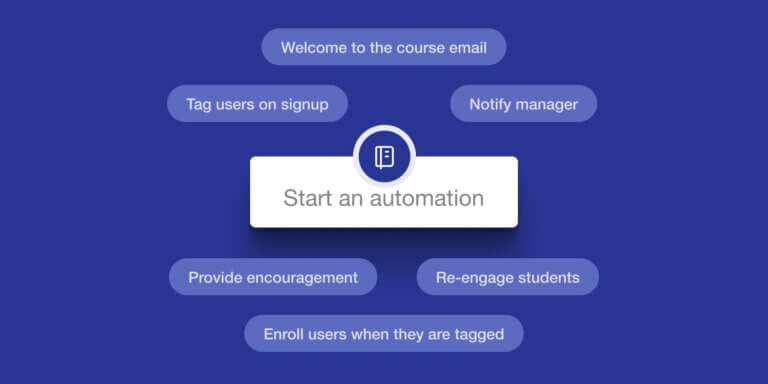
That is where LearnWorlds Automations can help. Automations let you connect learner behavior with the right next action, so your academy can respond automatically while you stay focused on creating better learning experiences.
Here are eight practical automations you can build using LearnWorlds Automation templates in seconds. You can also build full-on customized learner journeys starting from a blank page.
💡Learn more about LearnWorlds Automations capabilities.
1. Segment new signups automatically
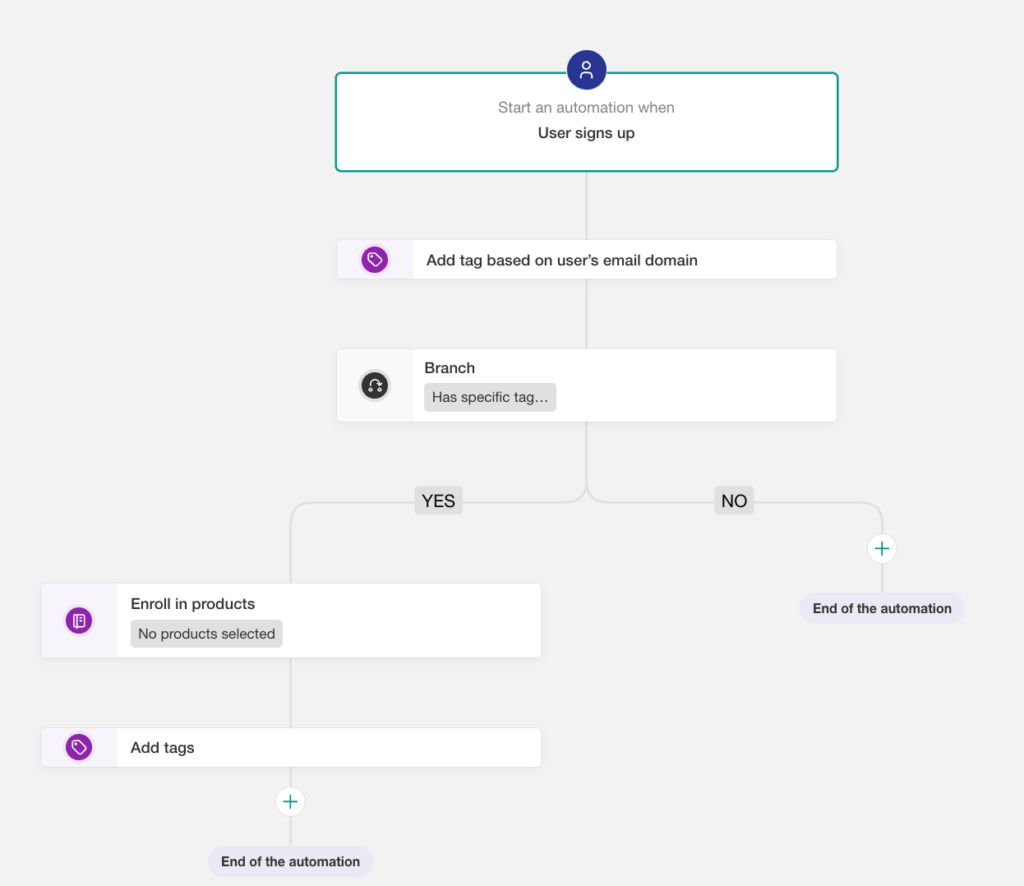
Template to use: Tag users on signup
Every learner who joins your academy brings useful context with them. They may belong to a company, a cohort, a role, a customer group, or a specific audience segment.
Instead of tagging new users manually, you can automatically apply tags when someone signs up. You can also tag users based on their registration email domain, which is especially useful when you work with companies, client organizations, or partner groups.
Use this automation to:
- Segment learners from the moment they join
- Trigger different follow-up journeys by audience
- Keep user records cleaner from day one
- Route learners into the right experience faster
This is a strong starting point for both course creators and professional training providers because many other automations depend on good segmentation.
2. Welcome learners when they enroll
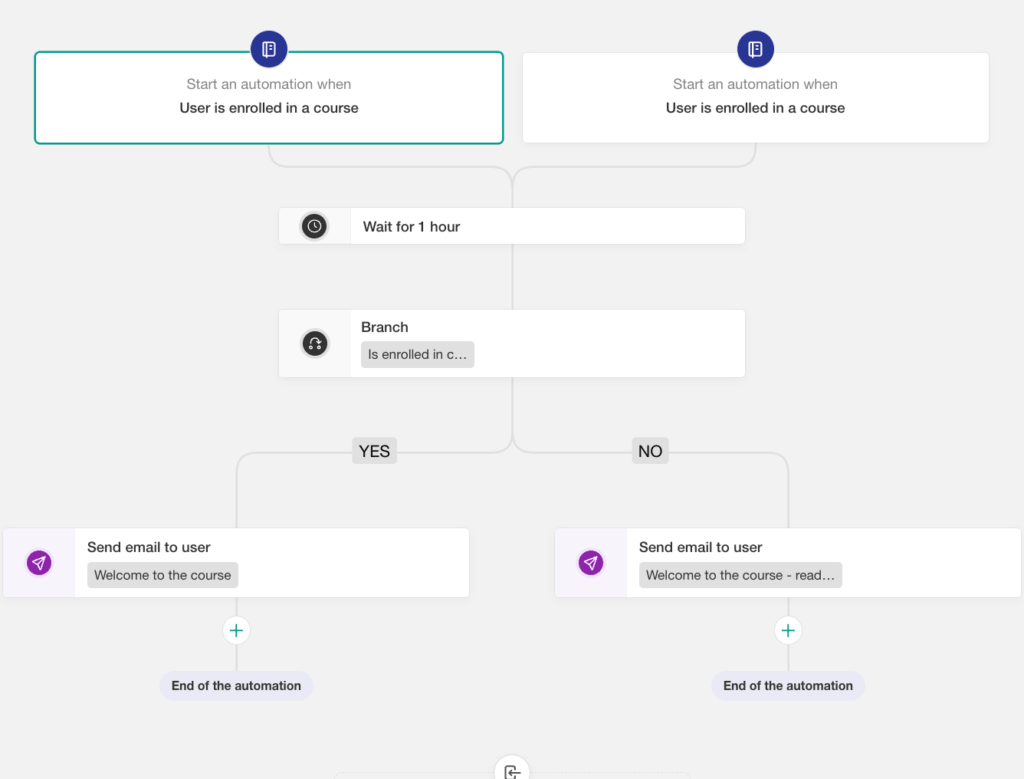
Template to use: Welcome to the course email
A learner’s first moment after enrollment matters. A good welcome message can confirm they are in the right place, explain what happens next, and reduce the chance that they buy a course but never begin.
With Automations, you can send a course-specific welcome email after enrollment. You can also add a short wait step or branch the message depending on the learner’s status.
Use this automation to:
- Welcome learners into a course or program
- Share first-step instructions
- Set expectations for pacing or completion
- Reduce confusion after purchase or enrollment
For course creators, this helps turn a purchase into a guided learning experience. For professional training providers, it helps standardize and customize onboarding across cohorts or client programs.
3. Enroll learners based on tags
Template to use: Enroll users when they are tagged
Tags can do more than organize your users. They can also trigger the next step in a learner’s journey.
For example, when a learner receives a specific tag, you can automatically enroll them in a course, program, or product. This is useful when learners need different training based on their role, company, cohort, purchase, or progress.
Use this automation to:
- Enroll learners into the right course automatically
- Manage role-based or client-based training paths
- Reduce manual course assignment
- Connect signup forms, tags, and enrollments into one flow
This is especially useful for professional training providers managing structured programs across different audiences.
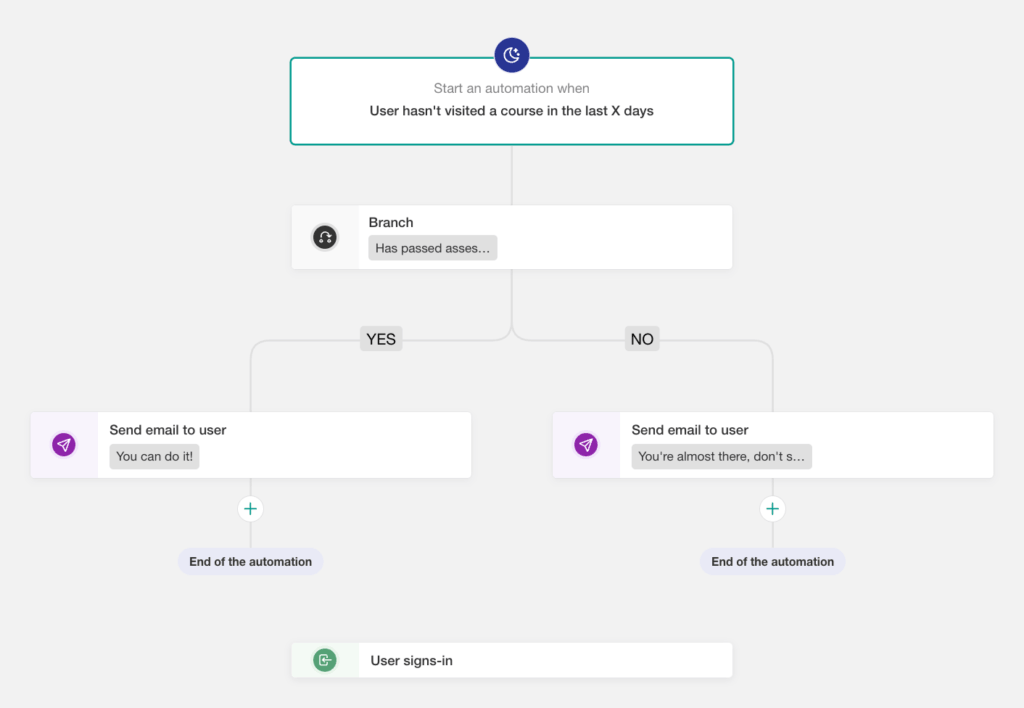
4. Re-engage inactive learners
Template to use: Re-engage students who have become inactive in a course
Not every learner moves through a course at the same pace.
Some start strong and then pause. Others enroll but do not return. A manual follow-up might help, but it is hard to catch every inactive learner at the right moment.
With Automations, you can send a reminder when someone has not visited a course for a set number of days. You can also branch the message based on their progress or assessment status.
Use this automation to:
- Bring inactive learners back into the course
- Send supportive reminders instead of generic nudges
- Adapt the message based on learner progress
- Improve completion without manual monitoring
The key is tone. This should feel like support, not pressure.
5. Support learners after an assessment
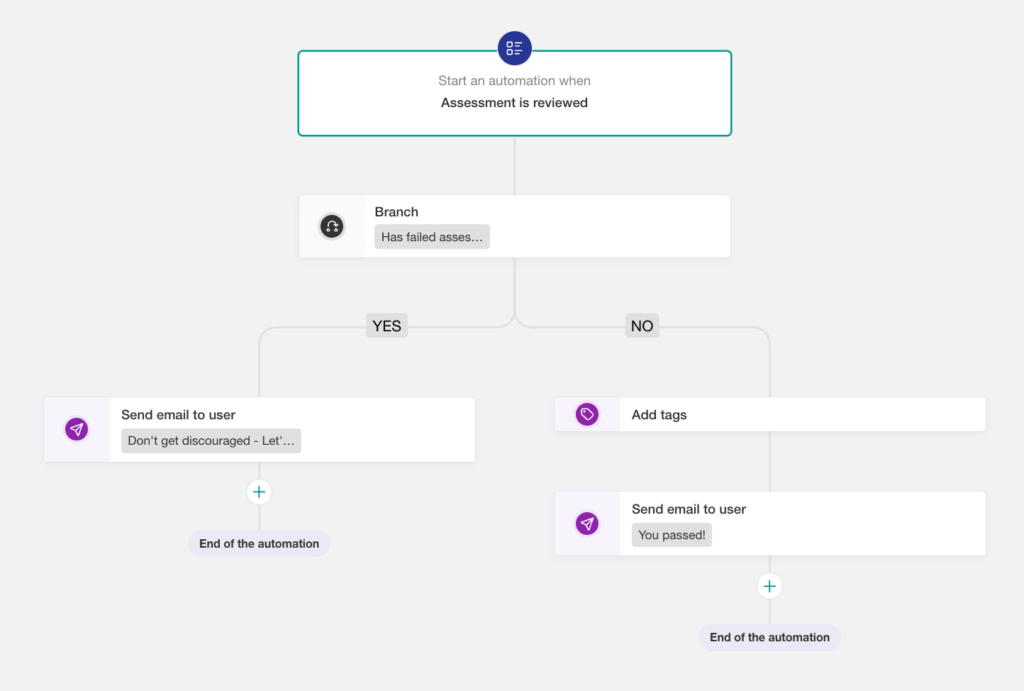
Template to use: Encourage students when they fail an assessment
Automations are not only for admin work or sales follow-up. They can also support learning quality.
When a learner fails an assessment, you can automatically send a message with encouragement, next steps, or instructions to review feedback and try again. You can also tag learners based on performance, making it easier to identify who may need extra support.
Use this automation to:
- Encourage learners after a failed assessment
- Share review instructions or support resources
- Tag learners who may need follow-up
- Create a more supportive assessment experience
This is a strong use case for professional training providers, certification programs, and course creators who care about learner outcomes beyond completion.
6. Follow up after program completion
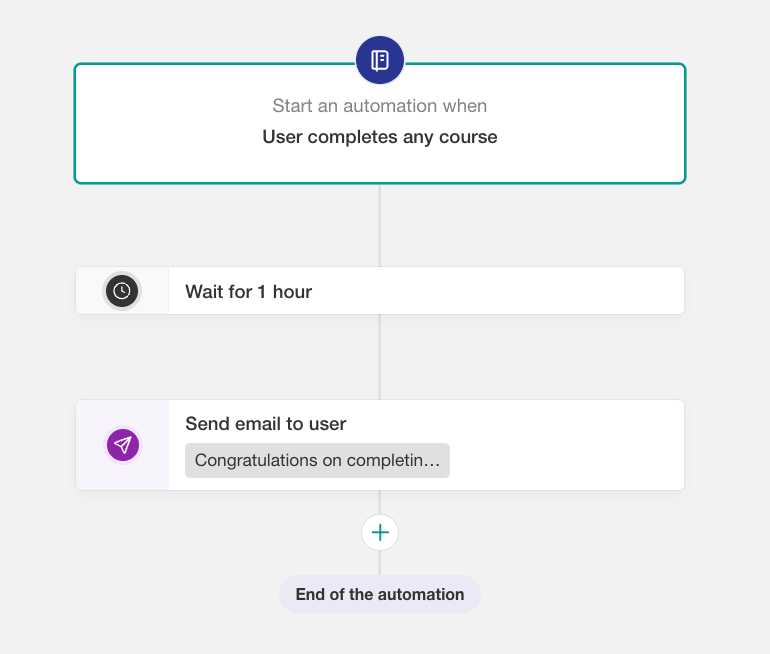
Template to use: Send email when program is completed
Completion should not be the end of the relationship.
When someone completes a course or learning program, you can automatically send a congratulations message, share next steps, recommend another resource, or explain what happens next.
Use this automation to:
- Celebrate learner progress
- Guide learners to the next step
- Share certificate or completion instructions
- Keep momentum after a program ends
For professional training providers, this is also useful for cohort wrap-up, compliance communication, and client-facing training programs.
7. Recommend the next course after completion
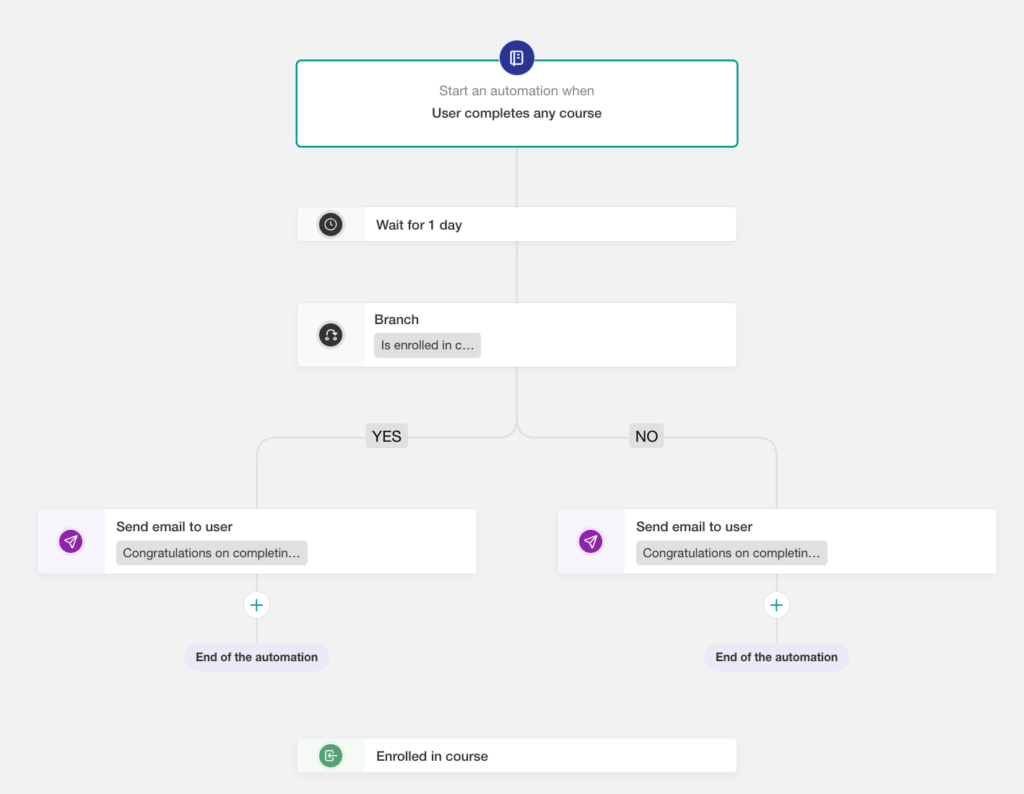
Template to use: Share a coupon when a course is completed
If a learner completes a course, that may be the perfect moment to introduce the next relevant offer.
With Automations, you can wait after completion, check whether the learner is already enrolled in another course, and then send a targeted follow-up. This could include a coupon, bonus course, or recommendation for the next program.
Use this automation to:
- Recommend the next course after completion
- Reward learners for finishing
- Encourage repeat purchases
- Keep learners moving through a learning path
This is especially useful for course creators with multiple courses, bundles, memberships, or advanced programs.
8. Notify managers when training is completed
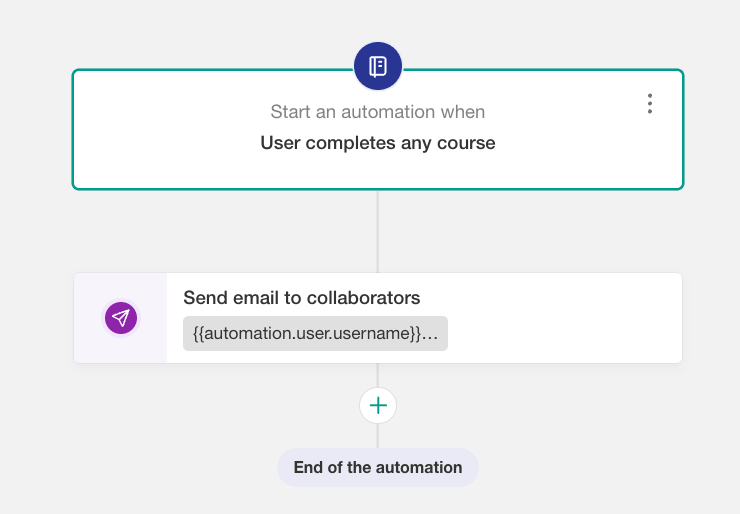
Template to use: Notify manager on course completion
In professional training, the learner is often not the only person who needs to know when training is complete.
A manager, admin, client contact, or collaborator may need confirmation that someone finished a course or earned a certificate. Instead of sending those updates manually, you can automate manager notifications.
Use this automation to:
- Notify managers when learners complete training
- Keep client stakeholders informed
- Support compliance and certification workflows
- Reduce manual reporting work
This is the most useful for professional training providers as it connects learner progress with operational visibility.
What should you automate first?
A good rule of thumb: automate the moments that are repeated, time-sensitive, or easy to forget.
Start with the tasks you already do manually:
- Welcoming learners
- Tagging users
- Enrolling people in courses
- Following up when someone goes inactive
- Sending completion messages
- Notifying managers or collaborators
Then build from there.
The best automations do not just save time. They make the learner experience feel more consistent, timely, and intentional.
Build your first automation
LearnWorlds includes ready-made Automation templates to help you get started faster.
You can choose a template, adjust the trigger, add waits or branches, define exit conditions, and customize the messages or actions for your academy.
Go to Users → Automations to explore available templates or start with a blank canvas of workflows that support your learners from signup to completion. Learn how to create automations.

Julia Prus
Julia is a Product Marketing Manager at LearnWorlds, where she turns product releases into clear value and makes sure what ships actually gets used.She has 8+ years of experience in product and growth marketing across B2B & B2C SaaS and digital products, working across startups and scale-ups to bridge product and marketing.
 Back to blog
 Scroll to top
Related Articles